

VS Code now ships a dedicated Agents window, a second window built for running and tracking AI coding agents across many projects at the same time.
This article is a hands-on technical walkthrough of how it works and why it is built the way it is. You will learn what the window puts on screen, the Agent Host process and open protocol that run your sessions, how folder and worktree isolation keep an agent's changes safe until you review them, how to reach sessions remotely over dev tunnels and SSH, how hooks turn a pile of completion chimes into useful signals, and how auto model routing lowers the cost of each request.
By the end, you will know how to set it up and the small set of habits that keep it fast and inexpensive.
Reference here.
Why an agent-first window exists
Classic VS Code is where you write code. You switch between files, sit inside a single workspace, and build a mental picture of one project. That model still fits a lot of work, and it holds up well when a human is doing the typing.
It starts to strain the moment you run agents across more than one project. Each additional agent means another window, another workspace to reopen, and another round of rebuilding context you just lost. That context switching is the real cost, and it is easy to underestimate until you are ten windows deep and cannot remember which agent was doing what.
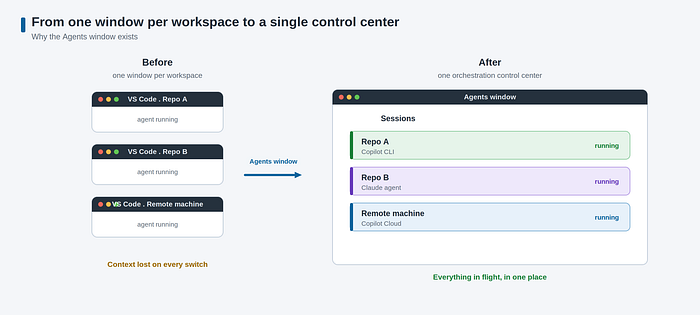
The Agents window addresses this directly. Instead of one window per workspace, it gives you a single surface where every workspace, every running agent, every pull request, and every worktree lives together.
A useful way to think about it is an orchestration control center: you glance at one place to see everything in flight and check on any session without hunting for the right window.
The editor window stays optimized for code-centric work in one workspace, and the Agents window is optimized for coordinating higher-level tasks across many projects, with chat and the sessions list as the primary interface.
The interface: one surface for every workspace
The first thing you notice is that it looks like VS Code, and that is a design decision rather than a coincidence. It is the same VS Code application presented as a different form factor.
Your theme carries over, your installed language extensions and other extensions come along, and your Git settings apply. It shares the same agent sessions, settings, and keybindings as the main editor, so you can move between an editor-focused flow and an agent-focused flow without losing state. Any session you start in one surface is immediately available in the other.
You open it from the Open in Agents button in the title bar, from the Command Palette with the Open Agents Window command, from the welcome page, by running the command line with the agents flag, or from a browser for cross-device access. It authenticates through your GitHub account to reach your Copilot subscription and your sessions.
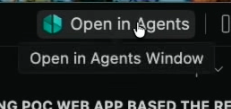
The window has four working areas. The sessions list in the sidebar shows every session across your workspaces, grouped by workspace by default, with right-click commands for renaming, pinning, and marking as done. The customizations panel sits below it, where you manage the settings that shape agent behavior.
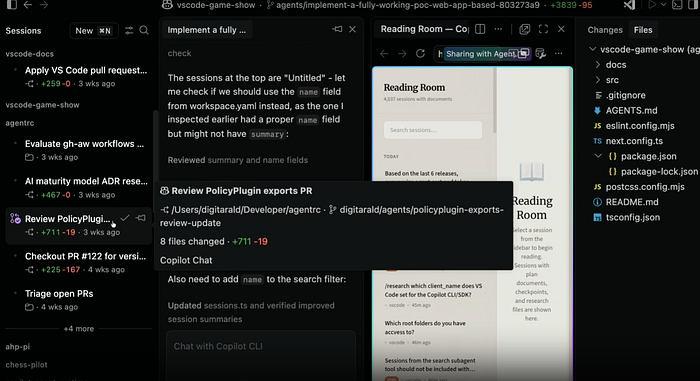
The chat area in the center holds the conversation, and you can open more than one session view side by side to compare work.
The changes panel on the right surfaces file edits, diffs, and a file explorer of the workspace. Sorting by updated time and by workspace is available today, and the broader question of how you manage a large fleet of agents is still an area of active design.
Under the hood: the Agent Host and AHP
This is where the calm surface rests on a serious foundation. The reason the Agents window can be the same app in a new form factor, run sessions on a remote machine, and keep an agent working when no window is open is a dedicated process called the Agent Host, together with an open protocol called the Agent Host Protocol, or AHP.
For a long time, VS Code's AI features lived inside the Copilot Chat extension, with agent logic running in the extension host.
The extension host is built around the lifecycle and APIs of extensions, and long-running autonomous work has different needs.
So VS Code moved agent session orchestration out of the extension host and into the Agent Host, which gives you five properties the older model could not. Sessions are shared, so multiple clients can observe and control the same session and stay in sync.
Execution can be remote, so the host runs next to your workspace on another machine while clients connect from elsewhere. Execution is independent, so a session keeps running even when no editor or client is connected.
Multiple agent runtimes plug into one host-facing interface through adapters, and each presents common session concepts to every client. And agents run in their own process, where a busy extension cannot block them.
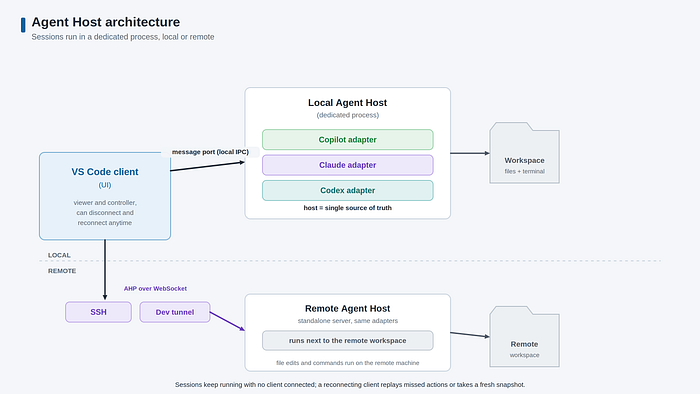
The Agent Host runs either as a local utility process or as a standalone server on a remote machine. Locally, VS Code talks to it over a message port for interprocess communication. Remotely, it uses AHP as JSON-RPC over WebSocket.
The first-party adapters for Copilot, Claude, and Codex run inside the Agent Host process, and each adapter translates between its own agent runtime and the common AHP session model. The host lives next to the workspace, so when it runs remotely, file edits and terminal commands run on the remote machine while the interface stays local. This is the same principle behind VS Code Remote Development, applied to agents.
AHP itself explains a lot of the reliability you feel. It is an open, agent agnostic protocol between a host and its clients, built on JSON-RPC, with immutable state and pure reducers for synchronized session data.
The host is the single source of truth. Each client subscribes to URI addressed channels for resources like sessions, chats, terminals, and changesets, receives an initial state snapshot, and then receives an ordered stream of actions.
If your connection drops, the client reconnects and either replays the missed actions or takes a fresh snapshot. That is why you can close a window mid task, reopen the session later from another window, and find the work intact.
The defining idea is that the agent can run without a client at all. A client is a viewer and controller that can come and go, and the host holds the baseline capabilities to manage sessions and work with the workspace on its own.
Connected clients can still contribute tools back to the host, such as browser tools or tools from installed extensions, and the host routes each of those tool calls back to the client that provided it.
Starting and isolating sessions
Unlike the Chat view, where a session is scoped to the open workspace, the Agents window lets you choose the target when you start a session. You select New, then pick a workspace from a dropdown.
The target can be a local folder, a GitHub repository, or a remote machine, which is what makes it comfortable to work across repositories, cross repo, or against a machine sitting somewhere else while still seeing everything in one place.
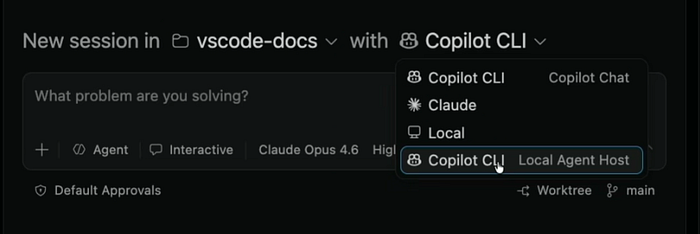
After you choose the workspace, you pick the agent type. For a local folder you choose between the Copilot CLI agent and the Claude agent, with the option to hand off to a Copilot Cloud agent later.
For a GitHub repository, sessions run on the Copilot Cloud agent. You can then add a custom agent, a specific language model, and a permission level.
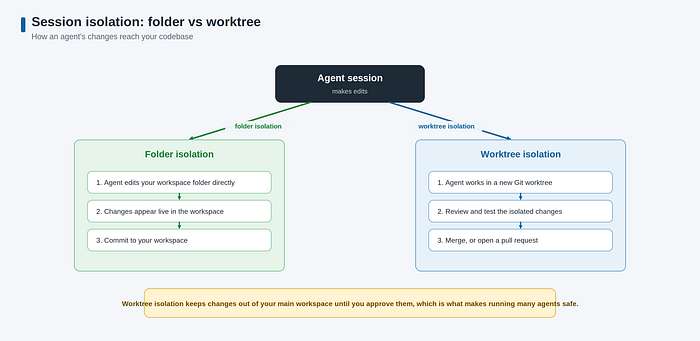
For Copilot sessions, there is one choice worth understanding well, because it controls how safe the whole flow feels: isolation. With the New Worktree option checked, the session runs in worktree isolation. VS Code creates a fresh Git worktree, and the agent works there, keeping its changes out of your main workspace until you decide to bring them in.
With the option unchecked, the session runs in folder isolation and can commit directly to your workspace. This is why a worktree-based Copilot CLI session's edits do not show up in your main workspace right away. The agent is working in an isolated copy so you can review and test before integrating, then merge the worktree or open a pull request.
Two more capabilities push orchestration further. Inside a single agent host session, you can run multiple chats side by side as separate tabs, each with its own conversation, title, status, and model, all sharing the session's workspace and worktree. That lets you start an independent task without interrupting an ongoing one. And when an agent delegates work to subagents, each subagent appears as a read-only peer chat you can follow without steering it, which maps onto the subagent lifecycle events you will meet in the hooks section.
You can also open multiple sessions side by side and jump between them with keyboard shortcuts, the same way you move between editors.
Working remotely with dev tunnels and SSH
Dev tunnels are one of the more useful features in VS Code, and the Agents window leans on them. A dev tunnel gives you a secure URL that runs VS Code in the browser, powered by your own machine wherever it is, protected behind your login.
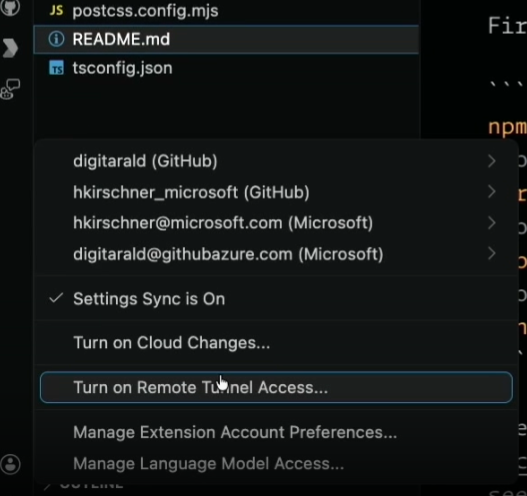
You start one by running the tunnel command on any instance and signing in with GitHub or Microsoft, and it works without extra setup.
For the Agents window, remote access comes in three forms. Browser based access lets you manage sessions from any device, including a phone, connecting to your development machine through a dev tunnel with the full session management experience and no local install.
SSH connects to a remote machine directly from the workspace dropdown, and the Agents window installs and starts the VS Code CLI on the remote host for you. A dedicated dev tunnel lets you start sessions or check in on existing ones running elsewhere. Under the hood, the remote Agent Host runs as a standalone process exposing AHP over WebSocket, and the window reaches it through SSH or the tunnel.
To run your own standalone host, the command starts a token-protected server on localhost, with a tunnel option to expose it. This is the architecture that makes checking on a build from your phone a real workflow rather than a demo trick.
Notifications that tell you something: hooks
Anyone running several agents knows the failure mode. When an agent finishes, it chimes, and once you have a handful of them, your machine turns into a row of slot machines with no way to tell which agent finished or what it needs next. The fix is hooks, and it is one of the more satisfying things you can set up.
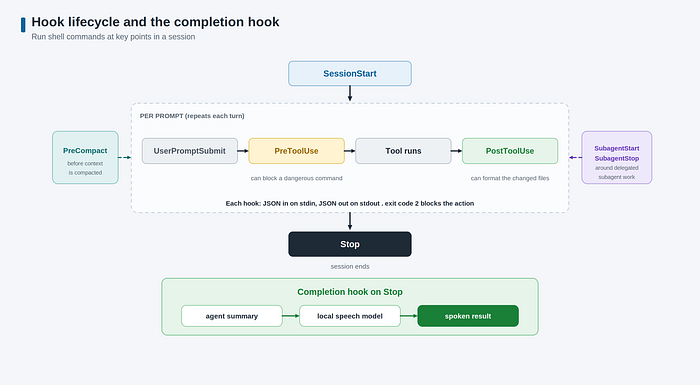
Hooks let you run custom shell commands at key lifecycle points during an agent session.
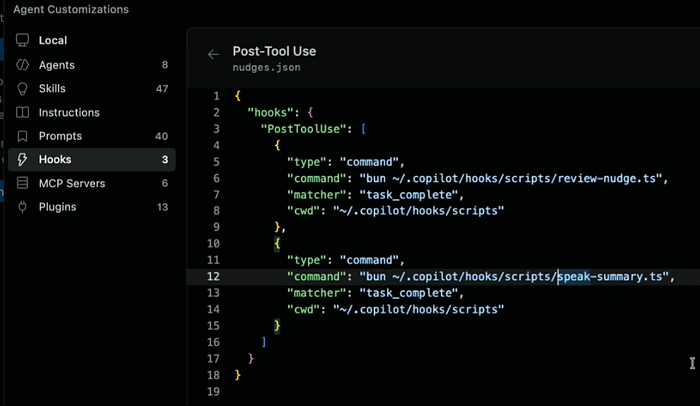
VS Code fires eight events.
- SessionStart when the first prompt lands.
- UserPromptSubmit on each prompt.
- PreToolUse before any tool runs.
- PostToolUse after a tool completes.
- PreCompact before conversation context is compacted.
- SubagentStart and SubagentStop around delegated work.
- And Stop when the session ends.
Each hook receives a structured JSON object on standard input and can return JSON on standard output to influence what happens next.
Exit code zero parses the output as JSON, exit code two is a blocking error shown to the model, and any other code is a non-blocking warning.
Configuration lives in JSON files under locations such as a hooks folder in your repository, and VS Code reads the same hook format as Claude Code and Copilot CLI for compatibility, so existing hooks port over.
A completion hook is the one to build first. Hang a command on the Stop event that takes the agent's final summary and speaks it aloud through a local, on-device speech model.
This pairs well with autopilot-style runs, where the agent is meant to finish everything you asked without stopping for input, and then calls a task complete tool with a description of what it did. Feed that description to the hook, and instead of an anonymous chime your machine tells you, in plain language, that it is done and what it changed.
The difference is real. A chime interrupts you and leaves you to investigate. A spoken summary offloads the tracking from your head, which is exactly the point when several agents are running at once. The same lifecycle gives you room for more: a PreToolUse hook can block a dangerous command before it runs, and a PostToolUse hook can format files right after an edit.
One safety note that is easy to skip. Hooks execute shell commands with the same permissions as VS Code, and an agent that can edit hook scripts could rewrite what runs on your machine. Review your hook scripts, and restrict the agent's ability to edit them without approval.
Spending less per task: auto model routing
Cost is the theme that ties the release together, because 2026 moved Copilot to usage based billing with AI credits, where different actions draw down credits at different rates based on the model and the number of tokens. The main tool for keeping that number sane is the auto model.
Auto is model routing, and it is worth separating from autopilot, which is a run to completion style.
When you select auto, Copilot chooses the model for each request based on real time availability and, with task optimization, on the shape of the task itself. It weighs reasoning needs, code generation complexity, diagnosis difficulty, and tool orchestration, then routes across model families, including Microsoft's own MAI models, OpenAI GPT models, and Anthropic Claude models, with the exact set changing over time.
It routes along natural cache boundaries so it does not throw away prompt cache savings, and evaluations show token efficiency gains with no quality regression, because not every task needs a heavy reasoning model.
On top of the routing, every paid subscriber gets a flat 10 percent discount on the model multiplier when using auto, so a request that would draw a 1x model bills at 0.9x instead.
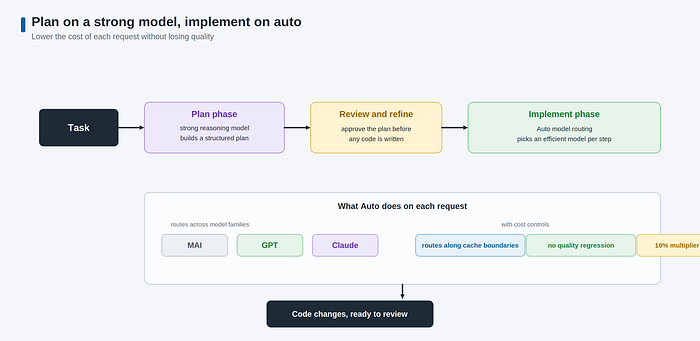
The habit that pays off most is to separate planning from implementation. Use a strong reasoning model to research the task and produce a structured plan, review and refine that plan before any code is written, then hand the approved plan to auto for implementation, where it will pick an efficient route per step.
This keeps the expensive thinking in the phase that needs it and lets the cheaper doing run on lighter models. A natural extension is to surface what you saved: since the routing is automatic, the product can show, after the fact, what a run would have cost on the top model. Seeing the saved credits turns a silent optimization into a visible result, and that feedback tends to change behavior.
If you want more than auto, the same playbook adds real gains. Start a new chat when you switch tasks so the model does not reprocess irrelevant history. Fork a conversation instead of re prompting from scratch when you want to explore a branch. Disable tools and MCP servers you are not using.
Exclude generated files from context. Compact long conversations. The agent debug logs expose a summary of token usage and a cache explorer that shows prompt cache hit rates, so you can see what is consuming credits and adjust.
Reviewing what the agent changed
Orchestration is half the loop. The other half is trust, and the changes panel is where you close it. It splits into a Files tab that is a full explorer of the workspace and a Changes tab that lists what the agent added, modified, or deleted, with a separate section for files the agent touched outside your workspace folders, such as a plan file written to its own session state.
Selecting a file opens a diff. While reviewing, you can select a range, attach a feedback comment anchored to it, group several comments, and submit them together. The agent reads the comments, makes the edits, and resolves each one.
You can mark files as reviewed to track progress, then act on the result: commit in folder isolation, merge and open a pull request in worktree isolation, check out a cloud session's branch locally, or discard edits you do not want.
You can also validate locally by configuring tasks that run a build or your tests in the session's context, and open localhost links from the chat in an integrated browser whose tabs are scoped to each session. This is what makes running many agents responsible rather than risky.
Getting started
The Agents window is in preview, built into VS Code Insiders and updated alongside it, so there is nothing extra to install. You need VS Code and access to GitHub Copilot, and you sign in with GitHub. From there, a simple routine pays off quickly.
Open the Agents window, start sessions scoped to the repositories and machines you care about, plan on a strong model and implement on auto, add a Stop hook so completion tells you something useful, and review every changeset in the diff before you merge.
Keep worktree isolation on when you run several agents at once, because that is what lets you review before anything lands.
Final Thoughts
The Agents window accepts a simpler reality: once you run several agents at the same time, coordinating them is its own job with its own needs. The Agent Host running your sessions in a separate process, the open protocol keeping every client in sync, worktree isolation holding changes back until you approve them, the hook lifecycle you can attach to, and auto routing choosing a sensible model per request are the parts that make a fleet of agents feel calm instead of chaotic.
You can adopt it gradually. Start one session, keep worktree isolation on, plan on a strong model and implement on auto, and add a hook that tells you what finished. Each of those is useful on its own, and together they turn context switching from a daily tax into something you barely notice.
References and further reading
VS Code Agents window documentation: https://code.visualstudio.com/docs/agents/agents-window?WT.mc_id=AZ-MVP-5000671
VS Code Agent Host architecture: https://code.visualstudio.com/docs/agents/concepts/agent-host?WT.mc_id=AZ-MVP-5000671
VS Code agents overview: https://code.visualstudio.com/docs/agents/overview?WT.mc_id=AZ-MVP-5000671
Agent hooks in VS Code: https://code.visualstudio.com/docs/agent-customization/hooks?WT.mc_id=AZ-MVP-5000671
Hooks reference with lifecycle event schemas: https://code.visualstudio.com/docs/agents/reference/hooks-reference?WT.mc_id=AZ-MVP-5000671
Remote agent sessions over SSH, dev tunnels, and browser: https://code.visualstudio.com/docs/agents/remote-agent-sessions?WT.mc_id=AZ-MVP-5000671
Developing with dev tunnels: https://code.visualstudio.com/docs/remote/tunnels?WT.mc_id=AZ-MVP-5000671
Optimize AI credit usage in VS Code: https://code.visualstudio.com/docs/agents/guides/optimize-usage?WT.mc_id=AZ-MVP-5000671
Choose and configure language models: https://code.visualstudio.com/docs/agent-customization/language-models?WT.mc_id=AZ-MVP-5000671
Subagents in VS Code: https://code.visualstudio.com/docs/agents/subagents?WT.mc_id=AZ-MVP-5000671
Set up GitHub Copilot in VS Code: https://code.visualstudio.com/docs/setup/copilot?WT.mc_id=AZ-MVP-5000671
About Copilot auto model selection on GitHub Docs: https://docs.github.com/copilot/concepts/auto-model-selection
Auto model selection routes based on your task on the GitHub Changelog: https://github.blog/changelog/2026-05-20-auto-model-selection-now-routes-based-on-your-task-in-vs-code/
VS Code source repository: https://github.com/microsoft/vscode
Agent Host Protocol source repository: https://github.com/microsoft/agent-host-protocol
Agent Host Protocol documentation: https://microsoft.github.io/agent-host-protocol/