

The rise of AI coding agents has transformed how we think about developer tools. Large language models like Claude, GPT, and others are remarkably effective at using command-line interfaces — they've been trained on billions of lines of CLI usage from documentation, Stack Overflow, and GitHub. But when it comes to working with Jupyter notebooks programmatically, there's been a gap: existing tools focus on running agents within notebooks, but what about agents that need to work with notebooks as artifacts?
nb-cli, an experimental open-source command-line interface designed specifically for AI agents, automation scripts, and developers who need programmatic access to Jupyter notebooks. Built with Rust for performance and reliability, nb-cli provides a fast, composable way to read, write, execute, and manipulate notebooks through a clean command line interface that follows the nbformat specification.
The Problem: Notebooks as Black Boxes
While Jupyter notebooks are indispensable for interactive exploration, their underlying `.ipynb` JSON structure has long been a friction point for programmatic interaction, especially for shell scripts and Large Language Models (LLMs).
Traditional workflows often break down when automation or AI-driven analysis is required. Consider the following scenarios where standard notebook interfaces prove insufficient:
- Autonomous Analysis: An AI agent tasked with auditing a data science workflow must programmatically inspect individual cells to map out the analysis pipeline.
- Automated Validation: CI/CD systems require a reliable method to execute notebooks, validate outputs, and catch errors before deployment.
- Documentation at Scale: Developers need tools to automatically transform notebook content into clean, accessible documentation.
- Production Debugging: Teams need a way to troubleshoot notebook execution failures in headless production environments without manual intervention.
- Notebooks as Data: Analysts may want to treat a notebook as a structured database to programmatically generate business reports, research summaries, or custom visualizations.
Historically, solving these problems required labor-intensive workarounds like manually navigating the JupyterLab UI, writing brittle Python scripts to parse complex JSON files, or using execution tools that lack real-time integration.
nb-cli bridges this gap by offering a CLI-first interface designed for the modern era of automation. By leveraging command-line patterns and Unix composability, it provides the structured output and predictable interface that AI agents and developers need to treat notebooks as first-class citizens in any software stack.
Key Features
Works With or Without a Jupyter Server
nb-cli doesn't require a running Jupyter server. By default, it reads and writes `.ipynb` files directly and communicates with kernels over ZeroMQ for execution. This makes it well-suited for scripting, CI pipelines, and any workflow where launching a server is unnecessary overhead.
# Create a notebook — no server needed
nb create analysis.ipynb

# Add cells
nb cell add analysis.ipynb --source "import pandas as pd"
nb cell add analysis.ipynb --source "# Data Analysis" --type markdown

# Execute
nb execute analysis.ipynb

# Read back with outputs
nb read analysis.ipynb
Connecting to a server becomes valuable if multiple users and/or agents are editing the same notebook simultaneously within a JupyterLab session. Once connected, nb-cli uses Y.js, the same CRDT protocol JupyterLab uses internally for conflict-free real-time synchronization.
# Auto-detect and connect to local Jupyter server
nb connect

# Or, connect to a specific server
nb connect --server http://localhost:9999 --token abc

# Add a cell - it appears instantly in JupyterLab
nb cell add experiment.ipynb --source "df.head()"

# Execute via the remote kernel
nb execute experiment.ipynb --cell fe456

# Restart the kernel before execution for reproducibility checks
nb execute experiment.ipynb --restart-kernel

# Disconnect
nb disconnect
When connected to a Jupyter server, nb-cli detects whether a notebook is open in JupyterLab and uses server APIs for conflict-free collaborative editing. If the notebook isn't open, it seamlessly falls back to file-based operations.
AI-Optimized Markdown Format
Language models don't parse JSON, they predict tokens. This distinction matters more than you'd think when you're building a tool that feeds notebook content into an LLM's context window. Jupyter's native notebook format is deeply nested JSON. Source code is stored as arrays of strings. Outputs carry base64-encoded blobs. Metadata nests several levels deep. This is fine for a JSON parser, but for a language model working within a fixed context window, 30–40% of those tokens are structural characters — braces, brackets, escaped newlines that carry no semantic value. Another common option is plain Markdown which is token-efficient and human-readable, but it's ambiguous. A # could be a markdown heading or a Python comment. A fenced code block could be a notebook cell or an example inside a markdown cell's documentation. When an LLM is asked to "fix the error in cell 7," it needs to reliably locate that cell in the text and plain markdown gives it no structural markers to count on, just a sequence of code fences that all look the same.
So we designed a line-oriented sentinel format:
@@notebook {"format":"ai-notebook","metadata":{"kernelspec":{"name":"python3"}}}

@@cell {"index":0,"id":"f68t57","cell_type":"code","execution_count":1}
```python
df.head()
```
@@output {"output_type":"execute_result"}
```text
   col_a  col_b
0      1      a
```
The format makes a few deliberate tradeoffs. @@cell and @@output sentinels give the model unambiguous structural boundaries without counting braces or tracking nesting. Inline JSON metadata on each sentinel line places cell type, index, and execution count in the tokens immediately before the content — matching how attention mechanisms locate information. Code in fenced blocks with language hints activates the model's syntax-level training. And because each cell block is self-contained, truncation degrades gracefully — unlike JSON, where a cut anywhere breaks the entire structure.
Designed for Composability
nb-cli follows Unix conventions — plain text output, stdin support, predictable exit codes — so it composes naturally with other CLI tools. For AI agents, this matters because a single shell command can replace what would otherwise be multiple tool calls with intermediate parsing.
Consider an agent asked to "add a summary section to the notebook and run it." Without nb-cli, this requires separate API calls to read the notebook, parse the structure, insert a cell, write the file, find a kernel, execute, read back the output — each consuming tokens for the request and response. With nb-cli:
nb cell add analysis.ipynb --source "$(cat <<'EOF'
@@markdown
# Summary

@@code
print(f"Rows: {len(df)}, Columns: {len(df.columns)}")
df.describe()
EOF
)" && nb execute analysis.ipynb -i -2 -i -1 && nb read analysis.ipynb -i -1
Three operations — add cells, execute them, read the result — in a single shell invocation. The agent gets back only the output it needs without re-reading the entire notebook.
The same principle applies to debugging. An agent investigating a failed notebook doesn't need to read every cell to find the problem.
# Find cells with errors — returns only the relevant cells
nb search analysis.ipynb --with-errors
One call, targeted output, no wasted tokens on cells that ran successfully.
Stable Cell Referencing
nb-cli supports two ways to reference cells.
- Index-based:
--cell-index 0(supports negative indexing: -1 = last cell) - ID-based:
--cell f68t57(doesn't change when cells move)
# Reference by position
nb cell update analysis.ipynb --cell-index 0 --source "x = 42"

# Reference by stable ID — safe even after cells are reordered
nb cell update analysis.ipynb --cell ce456 --source "print('Done')"

# Execute the last cell
nb execute analysis.ipynb --cell-index -1
Powerful Search Capabilities
nb-cli includes built-in search to quickly locate cells by content, type, or execution errors. By default, search matches against cell source code, but a scope filter extends it to execution outputs.
# Search for cells containing a pattern
nb search analysis.ipynb "import pandas"

# Find all cells with execution errors
nb search analysis.ipynb --with-errors

# Search within outputs instead of source
nb search analysis.ipynb "KeyError" --scope output

# Filter by cell type
nb search analysis.ipynb "TODO" --cell-type mardown
For AI agents, — with-errors is particularly useful — instead of reading an entire notebook to find what failed, the agent gets back only the cells that need attention. Combined with — scope output, it can search error tracebacks directly without parsing every cell's results. The same capabilities are useful for humans auditing notebooks for deprecated APIs, locating specific functions across large notebooks, or extracting patterns before a refactor.
Multi-Cell Operations
One of the most common patterns when working with notebooks programmatically is adding a sequence of cells — a markdown header, then setup code, then analysis. Doing this one cell at a time means multiple round-trips and index bookkeeping. Instead, nb-cli accepts multiple cells in a single call using the sentinels format we saw earlier.
# Add a markdown header followed by a code cell in one command
nb cell add report.ipynb --source "$(cat <<'EOF'
@@markdown
# Results

@@code
import pandas as pd
df = pd.read_csv('results.csv')
df.head()
EOF
)"
For more control, sentinels also accept the full @@cell {"cell_type": "…"} JSON format.
nb cell add report.ipynb --source "$(cat <<'EOF'
@@cell {"cell_type": "markdown"}
# Analysis Header

@@cell {"cell_type": "code"}
print("hello")
EOF
)"
Both formats work with stdin, making it easy to compose cells from scripts or pipelines.
printf '@@markdown\n## Summary\n\n@@code\ndf.describe()\n' | nb cell add report.ipynb --source - The same batching philosophy extends to execution and deletion:
# Execute cells 2 through 5
nb execute analysis.ipynb --start 2 --end 5

# Delete specific cells
nb cell delete analysis.ipynb -i 0 -i 2

# Delete a range of cells
nb cell delete analysis.ipynb --range 0:3
Environment-Aware Execution
— uv and — pixi flags are supported on nb connect, nb execute, and nb create, telling nb to discover Jupyter servers and kernels through the appropriate environment manager. nb status — python returns the command prefix needed to run Python in the same environment as the connected kernel — useful when agent-generated shell commands need to match the active notebook environment.
# Connect using a uv-managed environment
nb connect --uv

# Execute in a pixi-managed environment
nb execute analysis.ipynb --pixi

# Get the Python prefix for agent-generated shell commands
nb status --python
# Returns: "uv run", "pixi run", or empty for system Python

# Use in a pipeline
$(nb status --python) python -c "import pandas; print(pandas.__version__)"
Real World Use Cases
AI Agent Workflows
AI coding agents can now manipulate notebooks as a part of their analysis workflow.
# Surface all failing cells
nb search data_analysis.ipynb --with-errors

# Apply the fix
nb cell update data_analysis.ipynb --cell-index 3 --source "df = pd.read_csv('data.csv', encoding='utf-8')"

# Re-execute to verify
nb execute data_analysis.ipynb --cell-index 3
CI/CD Integration
Automated testing and validation of notebooks in continuous integration pipelines.
echo "Executing notebook..."
nb execute pipeline.ipynb --allow-errors

echo "Checking for errors..."
if nb search pipeline.ipynb --with-errors; then
  echo "Notebook execution failed"
  exit 1
fi

echo "Clearing outputs before commit..."
nb output clear pipeline.ipynb

echo "✓ All cells executed successfully"
Programmatic Notebook Generation
Generate documentation, reports, and analysis automatically.
# Create a report notebook
nb create report.ipynb

# Add title, introduction, and analysis in one multi-cell command
nb cell add report.ipynb --source "$(cat <<'EOF'
@@markdown
# Monthly Sales Report

@@markdown
Generated on $(date)

@@code
import pandas as pd
df = pd.read_csv('sales_data.csv')
df.describe()
EOF
)"

# Execute to populate outputs
nb execute report.ipynb
Debugging Production Notebooks
Quickly inspect and diagnose issues in deployed notebooks.
# Find all cells with errors
nb search failing_notebook.ipynb --with-errors

# Search for cells with deprecated API usage
nb search analysis.ipynb "pandas.np"

# Find cells with potential security issues
nb search notebook.ipynb "eval("

# Examine specific failing cell with full output
nb read failing_notebook.ipynb --cell-index 5

# Restart kernel and re-run for clean reproducibility check
nb execute failing_notebook.ipynb --restart-kernel
nb-cli in Action
To illustrate how AI agents use nb-cli naturally, here are some examples of agent interactions.
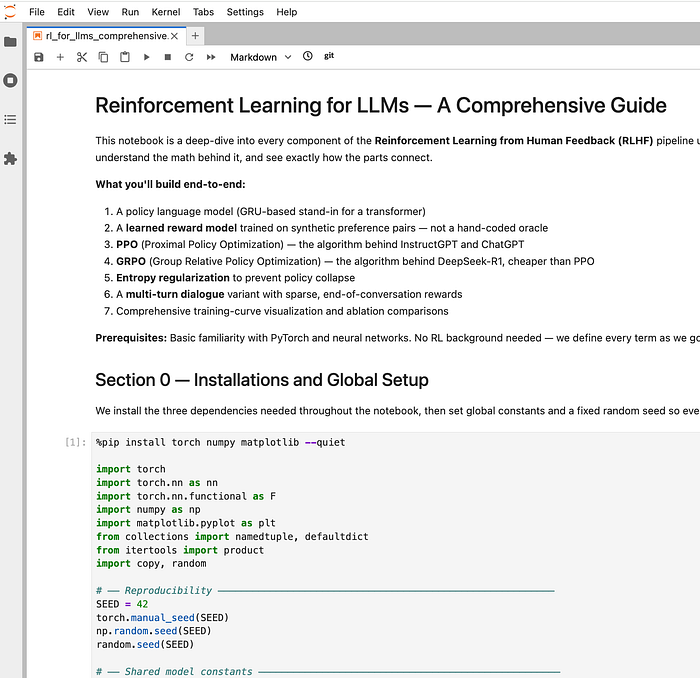
Example 1: Claude creating a RL for LLMs notebook
User Prompt: Help me learn about reinforcement learning for LLMs by creating a notebook and explaining at each cell how it all works. Cover the key concepts: policy model, reward model, KL divergence penalty, PPO, and GRPO. Use a tiny toy model (small vocab, GRU-based) so everything runs on CPU without any API keys.
Example 2: Codex fixing multiple bugs in a notebook
User Prompt: The file churn_analysis.ipynb is a broken research notebook that was last updated in 2023. Fix it so it runs cleanly end-to-end. Identify every cell that fails, fix each issue and verify the notebook executes successfully. After fixing, add a brief markdown note above each cell you changed explaining what was broken and why.
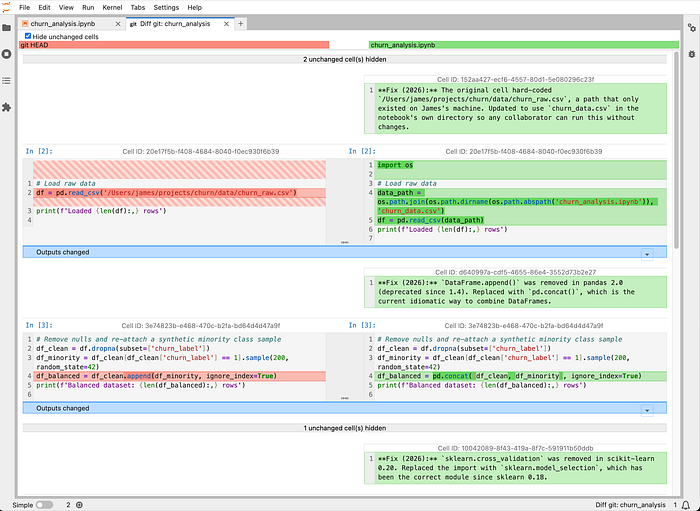
Codex fixed four bugs in churn_analysis.ipynb: a hardcoded file path, DataFrame.append() (removed in pandas 2.0), sklearn.cross_validation (removed in sklearn 0.20), and plot_confusion_matrix (removed in sklearn 1.2) and verified the notebook runs end-to-end after these chages.
Getting Started with nb-cli
Installation
Use the install script.
curl -fsSL https://raw.githubusercontent.com/jupyter-ai-contrib/nb-cli/main/install.sh | bashIf your platform is not supported, and you get an error during install, use cargo to install.
cargo install nb-cliOr build from source.
git clone https://github.com/jupyter-ai-contrib/nb-cli.git
cd nb-cli
cargo build --release
The binary will be available at target/release/nb .
To enable your AI agents to use nb for all notebook operations, install the skill.
npx skills install jupyter-ai-contrib/nb-cliAbout the developers



How can you help?
We're just getting started with nb-cli. Please join us!.
- Install and use the nb-cli. If you find any bugs or have suggestions, please create issues on GitHub.
- Join the discussion about nb-cli, open issues or add to discussion in jupyter-ai-contrib.
- Contribute: Your bug reports, feature requests, and pull requests will help improve this project for everyone.