
Overview
In my article on setting up a development environment on Android devices, I showed how you can install and configure Neovim, Emacs, and Visual Studio Code onto the device. In this article, I am going to walk through how to use VS Code and Neovim to perform remote code development.
Remote Code Development
For both VS Code and Neovim remote code development, the SSH server must be running on the remote machine. Since I have already set up OpenSSH in the previous article, I will not go through the steps here again.
Prerequisite for Visual Studio Code
VS Code Remote SSH only supports glibc based Linux distributions. Since we are using Termux on Android devices, there is an additional step for us to set up Ubuntu in Termux.
Follow the instructions here to set up ubuntu-in-termux.
Once I get the Ubuntu prompt, I need to install OpenSSH for the Ubuntu instance.
root@localhost:~# apt-get update
root@localhost:~# apt-get install openssh-server
Install dependant libraries required by VS Code.
root@localhost:~# apt-get install build-essential -yAdd the following line to /etc/ssh/sshd_config to allow root login.
PermitRootLogin yesStart sshd listening on port 8023.
root@localhost:/# mkdir -p /run/sshd
root@localhost:/# /sbin/sshd -p 8023
Change the password for root.
root@localhost:/# passwdVisual Studio Code
I am going to use Visual Studio Code Remote Development which allows us to use a container, remote machine, or the Windows Subsystem for Linux (WSL) as a full-featured development environment.
From within VS Code, press Ctrl-P (Command P for macOS) type
ext install ms-vscode-remote.remote-sshto install the Remote SSH extensionext install ms-vscode-remote.remote-ssh-editto install the additional extensions for syntax colorization, keyword IntelliSense, and simple snippets when editing SSH configuration files.
In VS Code, select Remote-SSH: Connect to Host… from the Command Palette (F1).
SSH into the device. In my case, the IP address is 192.168.0.116

In case you encounter an SSH time-out issue, try again.
Once connected I can see the remote folders. There is a message at the bottom left indicating that I am in an SSH session.
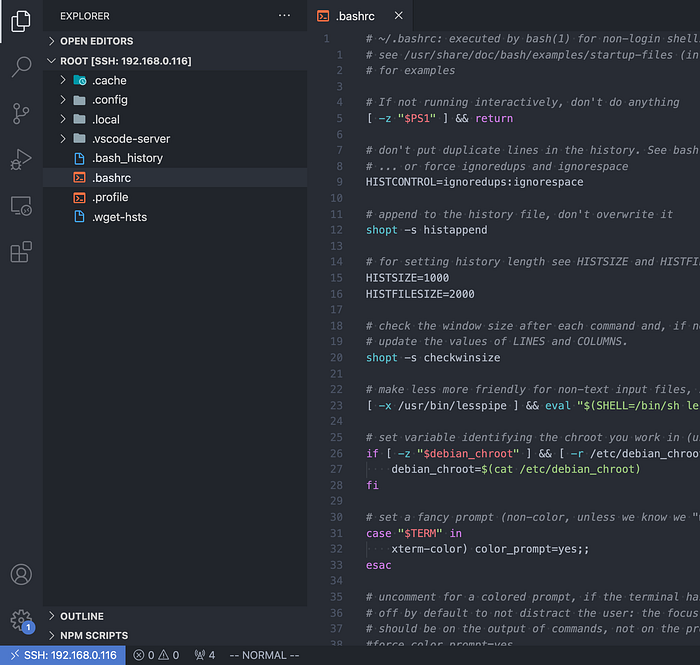
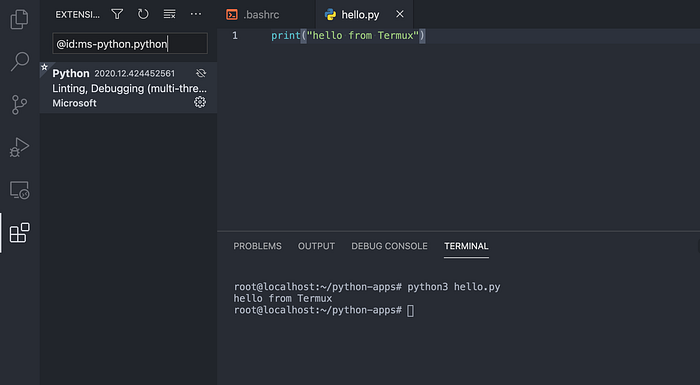
I can now install VS Code extensions into Termux, and also perform remote code development.
Neovim
There are at least 2 options that we can use Neovim to edit files remotely.
sshfs
From the computer, mount the remote folder using sshfs. The syntax is sshfs [user@]hostname:[directory] mountpoint
Below I mount the remote folder into ~/remote folder.
# mkdir -p ~/remote
# sshfs -d -p 8022 u0_a196@192.168.0.116:/data/data/com.termux/files/home ~/remote
Once the remote folder is mounted, I can then use nvim to edit the files.
scp
Both Vim/Neovim come bundled with Netrw which acts as a file explorer. Type :h netrw-nread and you can see it supports protocols like scp, sftp, http, rcp, etc. For scp, the syntax is scp://[user@]machine[[:#]port]/path
Since I am using password authentication, from my computer which is using Arch Linux, I need to install ssh-askpass.
# sudo pacman -S x11-ssh-askpassThen I can use Neovim to browse a remote folder. Note the "/" at the end.
# nvim scp://u0_a196@192.168.0.116:8022//data/data/com.termux/files/home/Do also check out the following articles.
If you are not a Medium member yet and want to become one, click here. (A part of your subscription fee will be used to support alpha2phi.)